Requesting an external examiner appointment
This quick guide is for School colleagues to show how to request a new external examiner appointment, and what information you will need to have before doing so. For any questions about the process, contact external-examiners@lboro.ac.uk.
Making an External Examiner appointment request
Access Academic Registry’s ‘External Examiners’ webpage. Section 13.2 contains all the forms relevant to external examiners – including appointing a new external examiner.
The embedded link will take you to an MS Form. This has replaced the previous MS Word form, which we expect to speed up the appointment process and reduce the amount of email traffic related to the relevant approval steps.
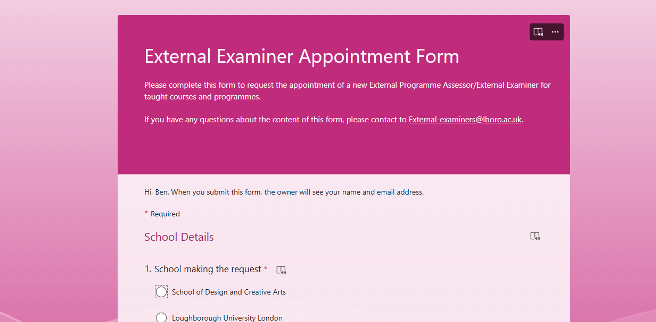
To complete the form, you will require the details of the external examiner (their full title, institution and business address etc), and which modules they will be acting for. There is also an option to attach the CV and RTW documentation of the appointee within this form.
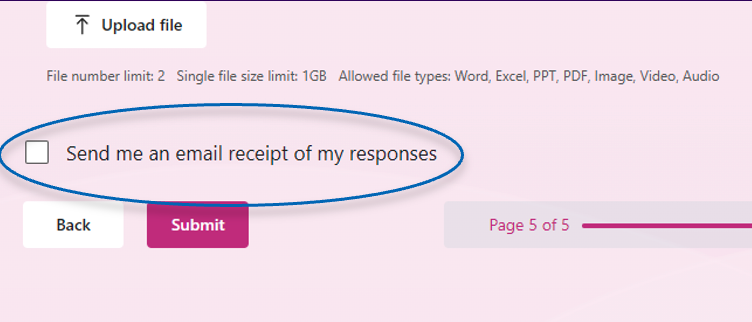
To save/view the request, you can either select ‘send me an email receipt of my response’ or select the ‘save my response’ box once you have submitted the form.
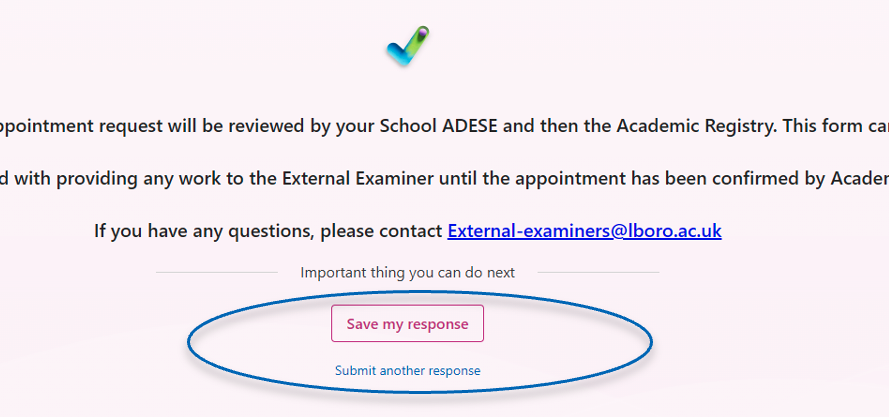
Once completed, the request will be reviewed by the ADESE, and if approved, will then be reviewed by the relevant PQTP colleagues. If the request is rejected, you will be informed via email. If the request is approved by all the relevant parties, you will be notified by email (and appointment proceedings will begin).
What happens next?
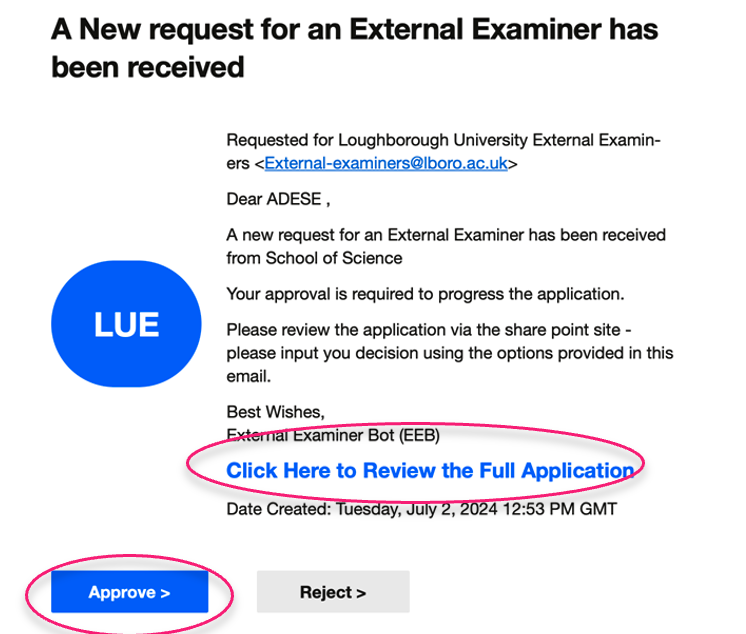
- Once the form has been submitted, this will trigger an automated request to the ADESE – asking them to review and approve/reject the request.
- This will be in the form of an email (which will appear to be from an external email address – see example). This email will contain an option for the ADESE to view the application itself and any attached documents, as well as approve/reject.
- If the application is rejected, then the ADESE will have the opportunity to leave comments explaining why this has been rejected.