Outlook to file explorer
Setting up links to Microsoft 365 groups in file explorer
A recent update for Microsoft Outlook has rendered the links to Microsoft 365 groups in outlook no longer accessible. These instructions will show how to synchronise Microsoft groups within Windows explorer
Below show an example of the current location Microsoft groups can be found within Outlook:

To access the files using the file explorer, instead of through outlook, this is easily accessible and simple to setup.
- Open a web browser and visit office.com
- Sign in with your university account
- Click on the 9 dots in the top left, and select ‘Onedrive’ to open a new onedrive tab
- On the left hand side should be the sharepoints sites that you have access to
- Select one of these links (you can also go to ‘more places’ for a list of more locations)

Select the site you want to set up access to and then:
- Press the ‘Sync’ button at the top of the screen

This will now set start to Synchronise and create a link within file explorer so that the files can be accessed (this is better than using a ‘shortcut to my files’ if possible).
Access to more than one group can be setup by repeating the steps above. All Synchronised groups will appear in Windows exploerer on the left under ‘Loughborough University’

Additional support
Please use the information below if you require any additional support
Removing a group
To stop synchrosing a group:
- Open the Onedrive application
- Select the 'help and settings' cog
- Select the 'settings' button
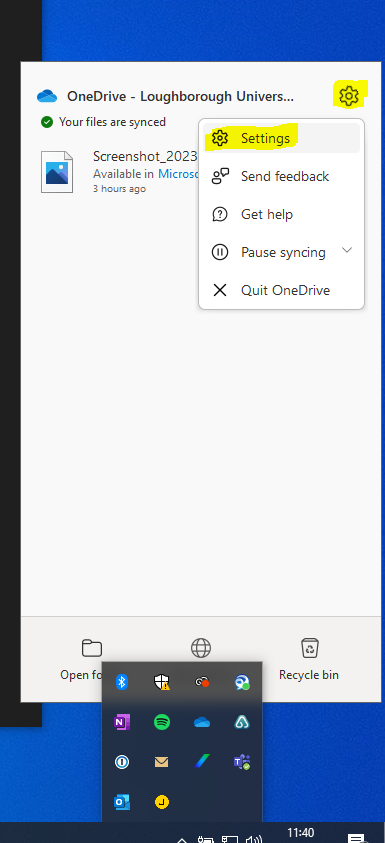
An account menu will now open displaying the active links to Microsoft 365 sharepoints. To remove any of the links you have set up
- Find the name of the group
- Click on the "Stop sync" button

This will stop the Sync and remove the group from the Loughborough University menu on the file explorer.