Instructions
Access the Microsoft 365 link shared with you by someone from Loughborough University.
Step 1: Open the invitation
Tip: If you are using an organisation-managed device or browser, it may be easier to copy the link into an InPrivate/Incognito browser window.
When prompted, sign in using the email address that the invitation was sent to.
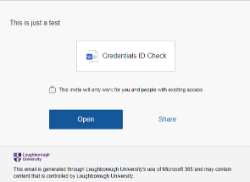
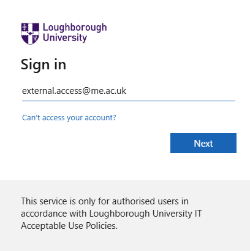
Step 2: Sign in or create an account
If you already have a Microsoft account
Sign in using your existing Microsoft 365 credentials.
If you do not have a Microsoft account
You may be asked to create an external Microsoft account.
- Create a password.
- Enter your display name.
- Select Next.
- Complete the account creation process.
Once completed, continue with the next step.
Step 3: Verify your identity
If prompted, click Send Code.
A 6-digit verification code will be sent to your email address.
- Retrieve the code from your inbox.
- Enter the code when prompted.
- Select Next.
If you do not receive the code within a few minutes, check your Junk or Spam folder.
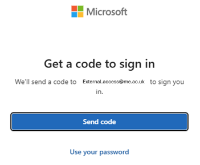
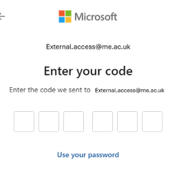
Step 4: Review permissions
You may be asked to review the permissions required to access the shared content.
Select Accept to continue.
You may also be prompted to choose how you would like to open the content, for example:
- Word
- Teams
- Web Browser
Select your preferred option.
Next
To secure your account, Microsoft will require you to set up Multi-Factor Authentication (MFA).
Go to the next tab to complete MFA registration.