How to connect my Android device to eduroam
You will need to know your Loughborough University username and password before you can start this process.
To connect to eduroam your device must have a supported, up to date and licenced operating system. Please check that your Android device is running on an OS version 14.0 or later.
Step 1: Download the Cloudpath app
Download and install the RUCKUS Cloudpath app from the Google Play Store using the link below. After pressing “Install”, DO NOT OPEN THE APP – go directly to Step 2.

Step 2: Connect to a network or use mobile data
Either use mobile data or connect to the setup-wifi network. To connect to setup-wifi:
- Open Settings on your device
- Select Connections
- Open the Wi-Fi menu (this maybe called Wi-Fi Settings)
- Select and join the setup-wifi network (You may see a message saying “setup-wifi has no internet access”. You can ignore this)
NOTE: Set-up-wifi is available across campus with the exception of the library, lecture theatres, West Park Teaching Hub and the James France Building.
Step 3: Open the Chrome browser
When you have mobile data or are connected to a network, follow the steps below.
- Open Chrome on the same device (other browsers will not allow the Cloudpath app to run)
- Start typing https://cloudpath.lboro.ac.uk/ or click the “Cloudpath site” button below
- Enter your Loughborough University username and password
- Click Continue

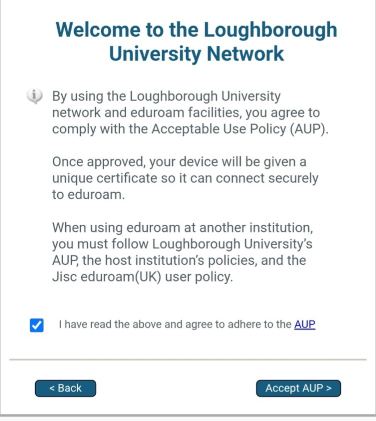
Step 4: Acceptable use policy
Tick the box to confirm that you agree to the AUP, then click the “Accept AUP” button.
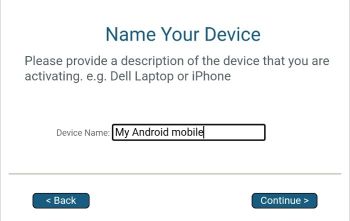
Step 5: Add your device
SETTING UP A NEW DEVICE FOR THE FIRST TIME
Give your device a suitable name, e.g. Google Pixel phone, Dell laptop, etc, then click Continue.
RECONNECTING A DEVICE WHICH HAS PREVIOUSLY CONNECTED TO EDUROAM
Select the appropriate device name from the list, then click Continue.
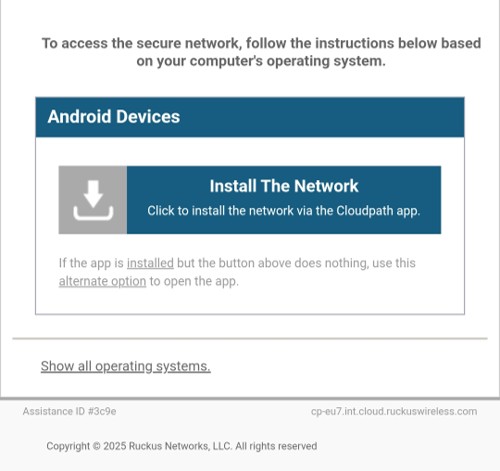
Step 6 : Configure Your Device
- Click Step 2
- The Cloudpath app will begin configuring and attempt to connect to eduroam
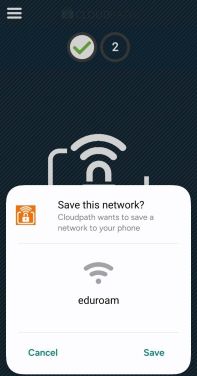
- If you are asked to “Save this network?”, click Save
Step 7 : Successful connection to eduroam
If the connection is successful, you will see two green ticks, as shown. Click 'Done', and your device should now automatically connect to eduroam (this may take a few seconds).
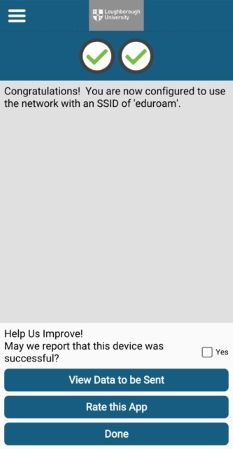
If you DO NOT see two green ticks at this point, please contact IT Services for further assistance.
If you DO see two green ticks, but your device does not automatically connect to eduroam:
- Open Wi-Fi settings
- Click on the eduroam Wi-Fi (if it hasn’t already selected)
- Wait for it to connect
Step 8: Forget setup-wifi
Once you have connected to eduroam:
- Click and hold on setup-wifi until a menu appears
- Select 'Forget network'